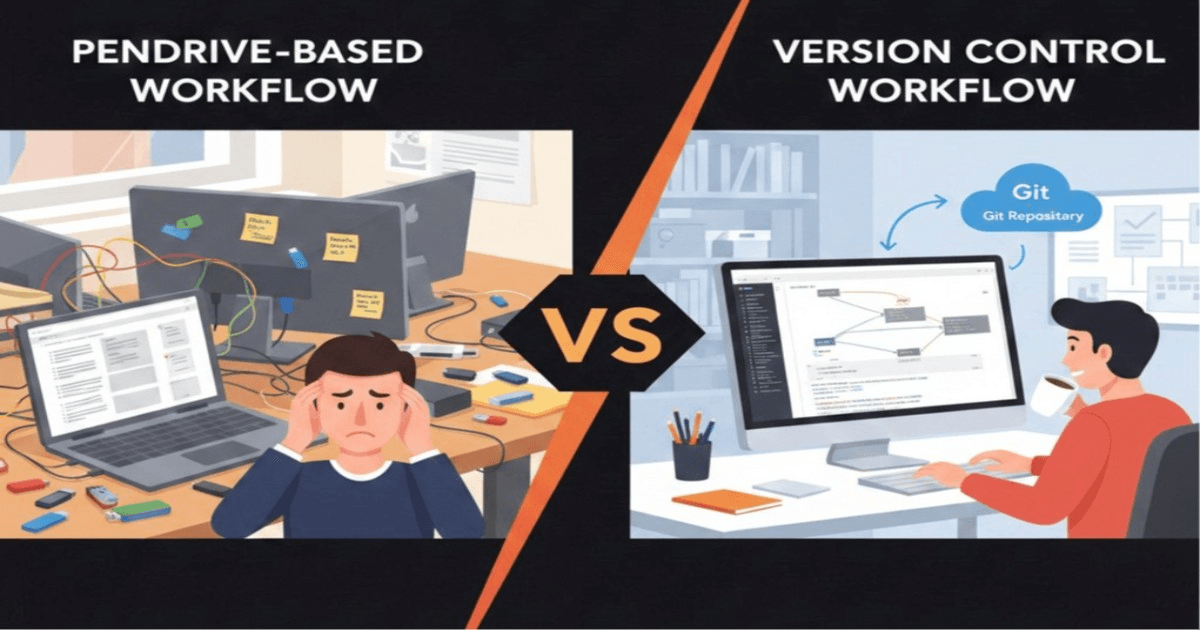
Git Command Guide: 10 Must-Know Tips for Developers

Git contains multiple commands which helps developers to use git efficiently in the software development process, but there are 10 simple commands that you should know as a developer. This 10 commands are the used daily by most of the developers.
1.git init
It is used for initializing the git version control system for the project. After this git manages the record of each and every lines of codes changed in a project. By default there is no name for the current branch of repository, basically the branch name is depend on the git server where toy are storing your project code. Most of platforms like GitHub, GitLab, etc. uses main as their default branch name where as SourceForge uses master as default branch name.
git init
2.git add
Git add is used to stage the changes for commit. It basically means whenever a commit happens for string the current code consider all the staged files for saving the current progress.
Example:
git add file.js  # Stage a specific file
git add . # Stage all files changed
3.git commit
Commit command stores/save the current changes of project such that in future if mistakenly the project is deleted or the there you found a bug in previous committed code then restoration of code can possible.
For best practice always commit the code with some messages using :
git commit -m “<your-message>”
This will help while looking for the commit for rolling back to a specific code version.
4.git revert
Revert is used to commit a history safely with removing the code of specific commit. It can also called as “safe rollback” because it safely remove the code of a specific commit and whole code flow remains as it is.
# Syntax
git revert <commit_hash>

#Example
git revert xyz986
5.git reset
Git reset moves the current project head back to a specific mentioned commit.
There are mainly 3 ways to reset:
git reset --soft HEAD~1   # Keeps changes staged
git reset --mixed HEAD~1  # Keeps changes unstaged (default)
git reset --hard HEAD~1   # Discards changes completely
NOTE: Use git reset carefully specially git reset --mixed as it can remove all the changes done till in the project. There is no way back after git reset --hard.
6.git log
Git log gives the all the history of commit activity done on project. It mainly shows commit hash, commit message, author name and date of commit. All the logs is in reverse chronological order.
$ git log # command

# Sample output
commit 2e9fa773a7b8b21cad7923978a1e84ebb751b745 (HEAD -> master) #Hash
Author: Nikhil Nandanwar <email@email.com> #Author name and email
Date:   Thu Jan 8 11:57:29 2026 +0530  # Date and time
    Add initial implementation of chat application with WebRTC functionality # Commit message

commit 17250d504e338e498ad0289462a8cb2d56cfc0e7
Author: Nikhil Nandanwar <email@email.com>
Date:   Tue Jan 6 22:38:53 2026 +0530
    Remove legacy chat application files including package.json, server.js, and style.css

commit 8fcdf3b637fe4aa8faa90e16bcf4d5d55fd08c92
Author: Nikhil Nandanwar <email@email.com>
Date:   Tue Jan 6 22:32:50 2026 +0530
    initial commit: add basic structure for chat application with WebRTC functionality
7.git diff
Git diff is used to see the difference between the two files like what is actually changed in that code compared to last commit. It can be used for comparison of two files, commits or branches shows the added code with the green highlight and remove code with red highlight, helping user to see clear difference between the two.
git diff              # Unstaged changes
git diff --staged     # Staged changes
8.git status
Git status tells the status of each files and current working directory by marking files as modified, staged, untracked, or ready to be committed.
git status
9.git branch
Git branch is used for creating another branch of current project flow, with having all the previously added code in it. It mainly helps for parallel working without affecting the code of other branches.
git branch # List all branches
git branch feature-login # Create a new branch
git branch -d feature-login # Delete a branch
10.git checkout
Git checkout is mainly used for getting the code of other branches of the current project. It helps to quickly switch between two branches and check the progress of each branches or compare the two.
git checkout main            # Switch branch
git checkout abc123          # Checkout a specific commit
Checkout is also useful for restoring the code of a file to it’s previous version.
git checkout -- file.txt # Restore a file
This are the 10 commands that will help you in your software development journey and I am open for your feedback or suggestions about the blog.
Thank you for reading the blog, this is Nikhil Nandanwar.